Administration
账户设置
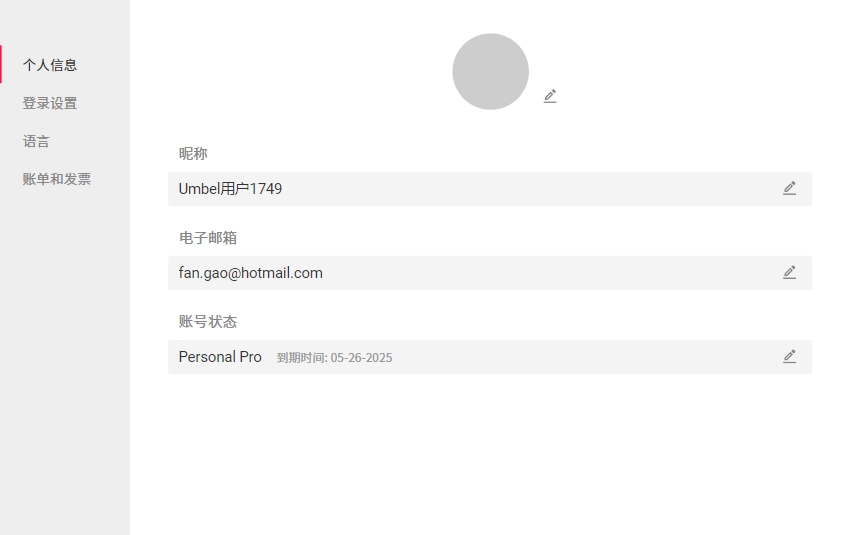
个人信息
Click on "Upload Image" at the top of the Media Library on the right side. Upload one or multiple images. Once the upload is complete, the images will be displayed in the list.
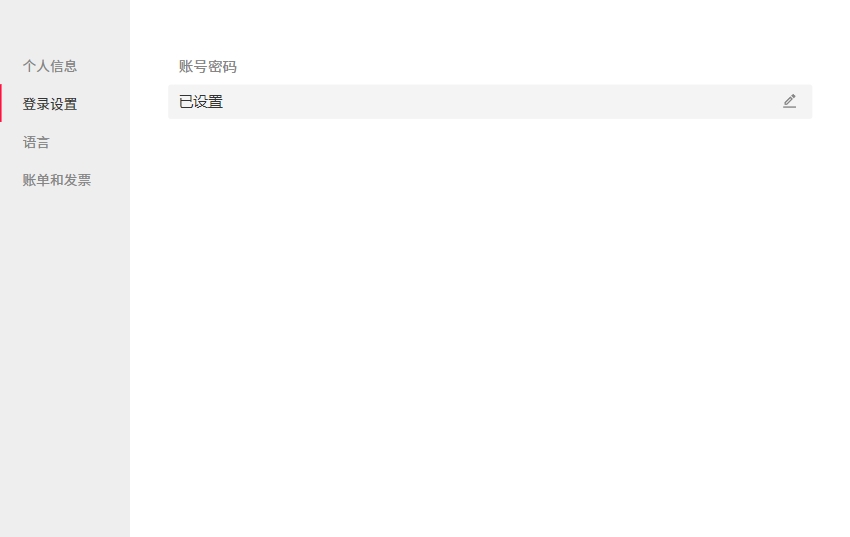
登录设置
Click on "Upload Image" at the top of the Media Library on the right side. Upload one or multiple images. Once the upload is complete, the images will be displayed in the list.
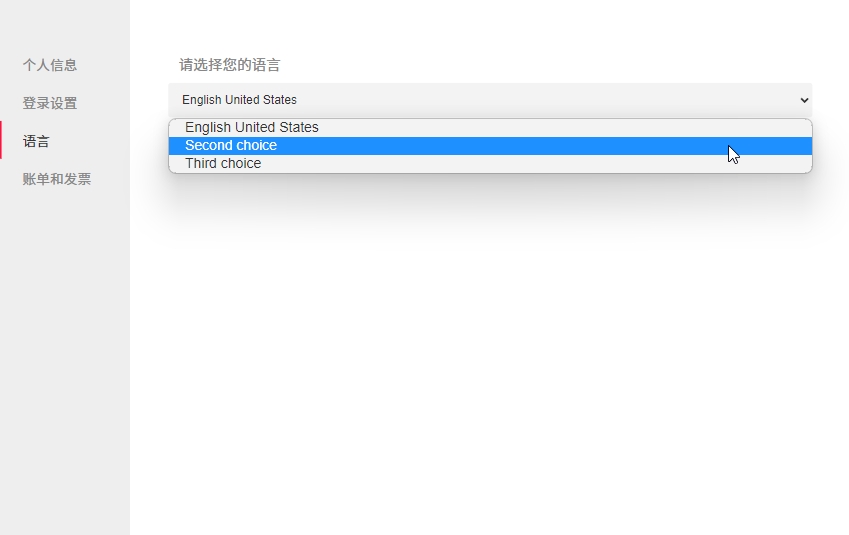
语言
Click on "Upload Image" at the top of the Media Library on the right side. Upload one or multiple images. Once the upload is complete, the images will be displayed in the list.
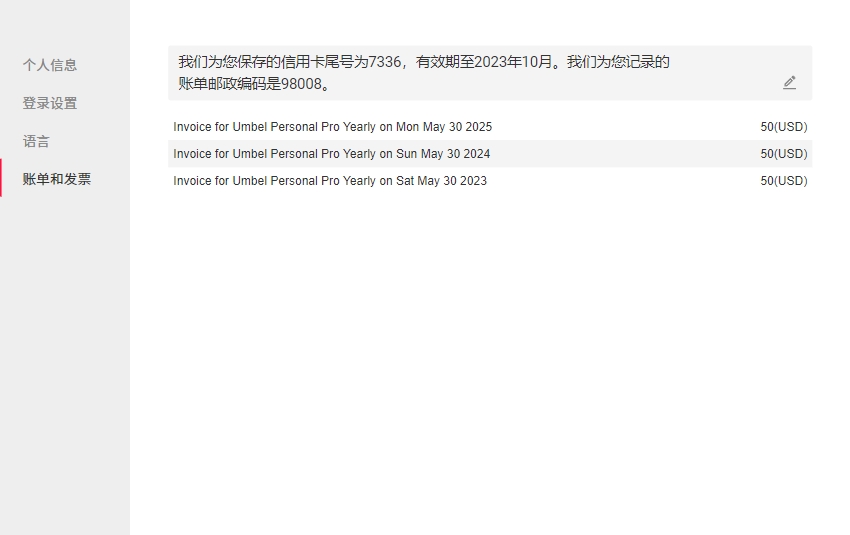
账单和发票
Click on "Upload Image" at the top of the Media Library on the right side. Upload one or multiple images. Once the upload is complete, the images will be displayed in the list.
目录树
新建文件
Click on "Upload Image" at the top of the Media Library on the right side. Upload one or multiple images. Once the upload is complete, the images will be displayed in the list.
新建文件夹
Click on "Upload Image" at the top of the Media Library on the right side. Upload one or multiple images. Once the upload is complete, the images will be displayed in the list.
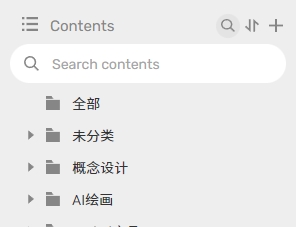
搜索目录树
点击左侧栏的放大镜, 输入搜索内容.
排序
Click on "Upload Image" at the top of the Media Library on the right side. Upload one or multiple images. Once the upload is complete, the images will be displayed in the list.
移动
• 拖拽移动
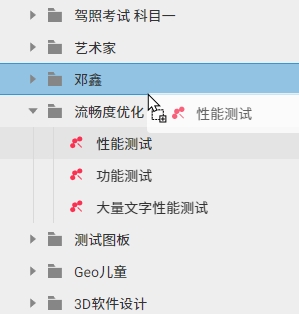
• 或通过右键菜单移动
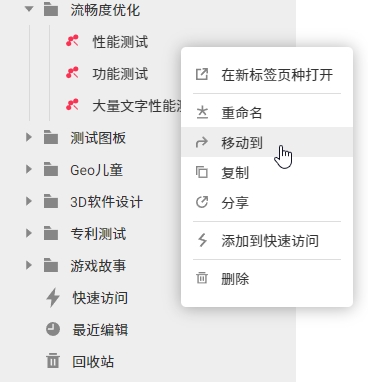
删除
Click on "Upload Image" at the top of the Media Library on the right side. Upload one or multiple images. Once the upload is complete, the images will be displayed in the list.
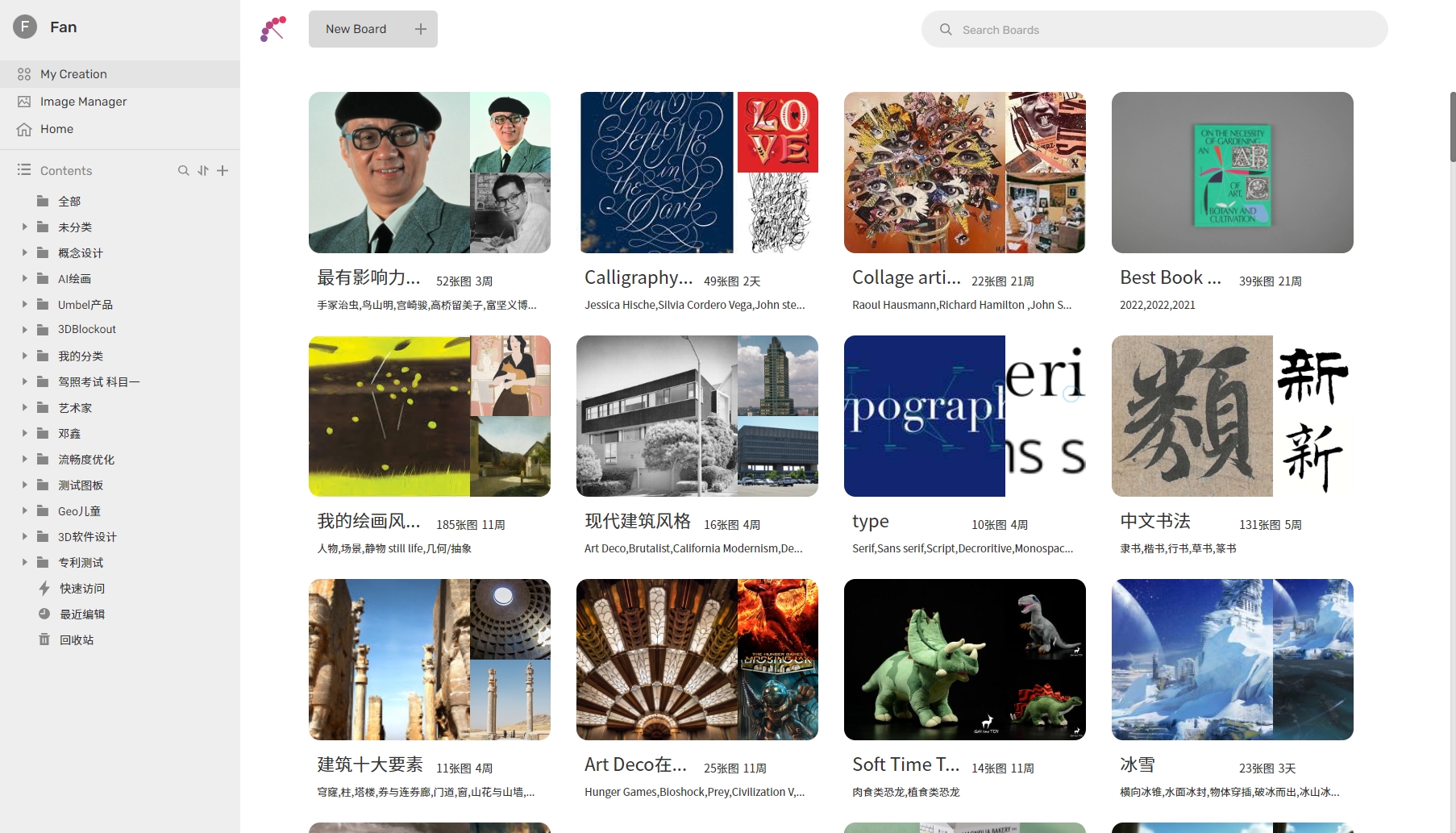
我的图表
卡片
Click the plus sign to create a new node.

图片管理
上传图片
Click the plus sign to create a new node.
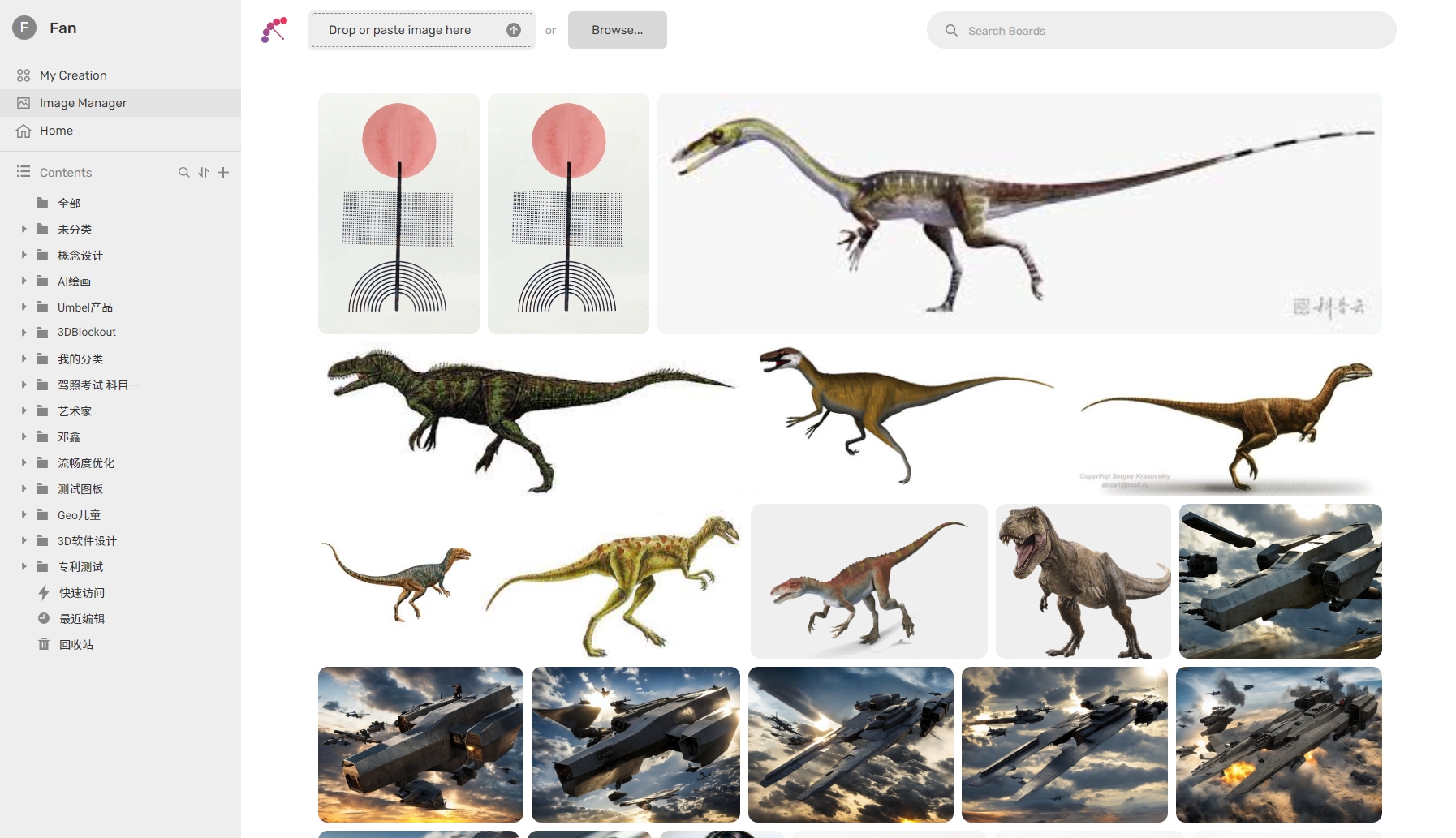
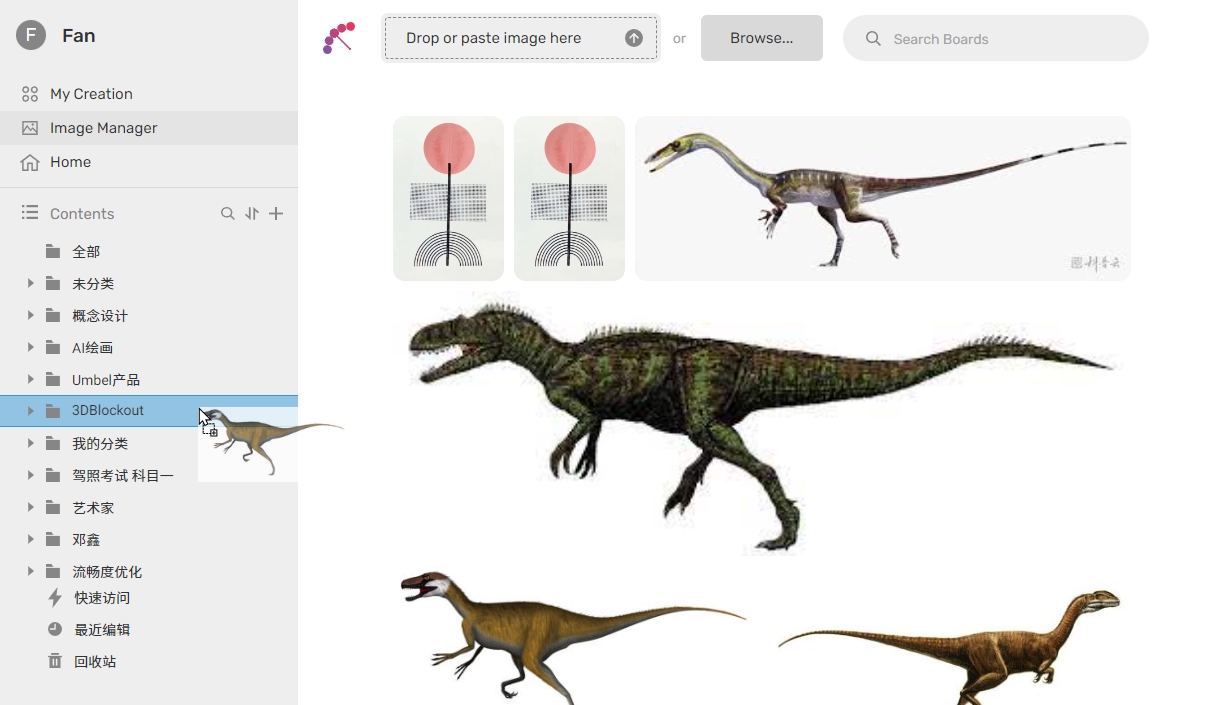
移动图片到目标图板
Click the plus sign to create a new node.